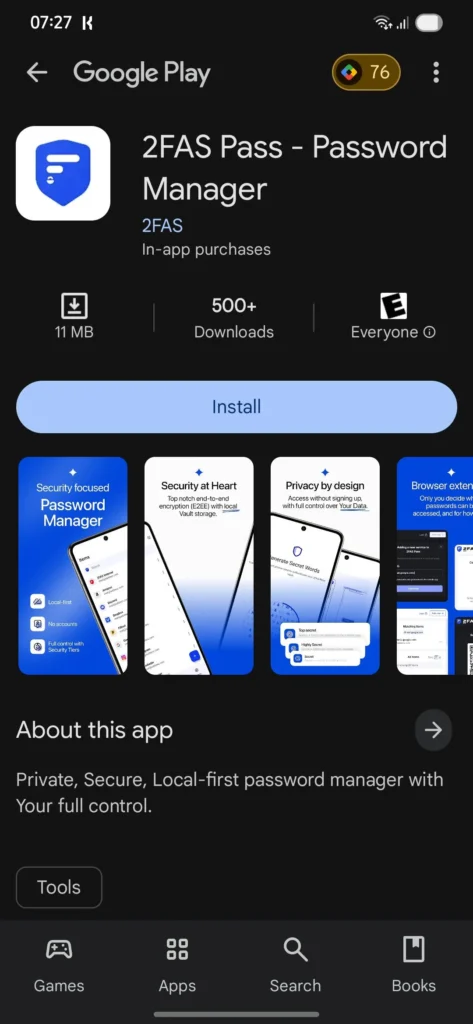
A password manager solves a specific problem: people need unique passwords for many accounts but cannot realistically memorise them all. The right comparison is therefore not “which vault has the most features?” but “which design can you understand, secure, recover and leave if you need to?”
What to compare
- Encryption model: read how the provider derives encryption keys and what it can or cannot access.
- Multi-factor authentication: prefer support for strong MFA; hardware security keys are useful for high-value accounts.
- Recovery model: understand what happens if you forget the master password or lose all enrolled devices.
- Export and portability: make sure you can export your vault in a documented format when moving providers.
- Security history: read breach disclosures and how the provider responded, not just the homepage promise.
- Platform support: verify browsers, Android/iOS, desktop and family-sharing needs before paying.
A safe setup in five steps
- Create a long, unique master passphrase that is not reused anywhere else.
- Enable MFA on the password-manager account.
- Store recovery information somewhere separate and physically secure.
- Change reused passwords first, starting with email, banking and cloud accounts.
- Keep the app and browser extension updated.
Browser password manager or dedicated service?
Built-in managers from major browsers and operating systems are far better than reusing passwords. Dedicated managers may offer broader cross-platform support, sharing, recovery or administration. Choose based on your actual ecosystem and threat model rather than treating one category as automatically secure.
Editorial basis
This is a research-based security-tool guide. CSNR does not claim access to a provider’s internal systems. Provider architecture claims are checked against documentation; independent audits and public incident reports are useful secondary evidence.
Leave a Reply