There isn't a single app that makes a computer, phone or online account safe. Security is a collection of choices: keeping devices updated, using strong sign-in, spotting suspicious messages and being able to recover information when something fails. The right tools help with those jobs. The wrong ones promise complete protection, demand unnecessary access or distract from basic problems.
This guide explains the main types of security tools in everyday terms, including what they can do, what they cannot do and which should usually come first.
1. Antivirus and malware protection
Antivirus software looks for malicious files or behaviour. Modern operating systems already provide several protections, and third-party software may add scanning, web warnings, reporting or management features. What matters is that the product receives updates, works reliably on your hardware and performs well in credible independent evaluations.
Installing two competing real-time scanners can create conflicts rather than double protection. A scanner also cannot make it safe to give a fraudster your payment PIN or grant remote control to someone impersonating support.
2. Password managers
Reusing one password across shopping, email and banking-related accounts is risky because a leak at one service can expose others. A password manager makes distinct passwords practical and can often flag weak or reused credentials.
The master password and recovery method deserve special care. Choose a tool with a security design you understand, set up additional authentication where supported and learn how to regain access if you lose a device. Your main email account is a sensible place to start.
3. Multifactor authentication and passkeys
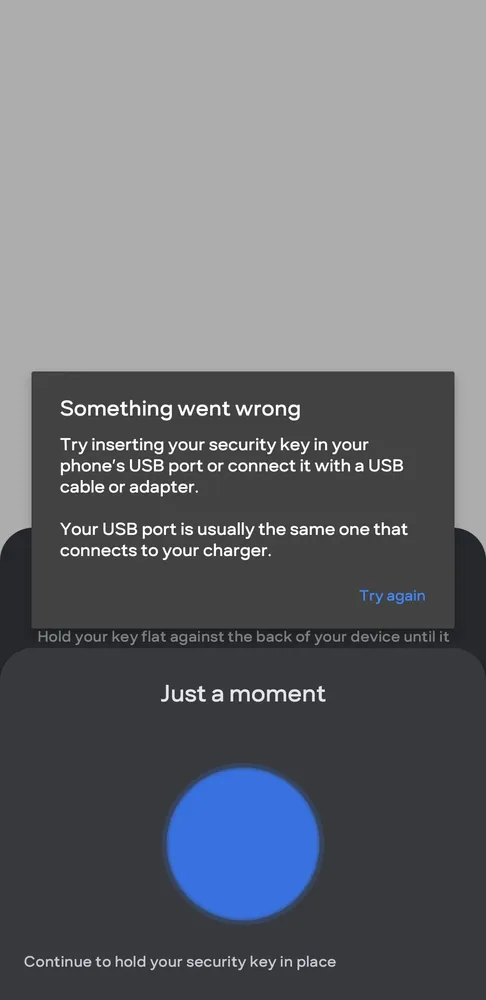
A second sign-in factor adds protection when a password is stolen. Text-message codes, authenticator apps, security keys and passkeys do not all resist attacks in the same way. A code can be entered into a fake login page, while properly implemented phishing-resistant methods can prevent that particular type of credential theft.
Before switching, check whether the service supports backup methods and how its account recovery works. The goal is strong security you can still use after a phone is lost or replaced.
4. Firewalls and network controls
Firewalls control permitted network connections and are part of ordinary computer and router security. For a household, keeping the router's firmware updated, changing weak administrative passwords and using current Wi-Fi protection are good starting points.
Network tools are not a replacement for protecting individual accounts. A malicious link can still work on a perfectly configured home network if it convinces someone to disclose a password.
5. Updates and vulnerability management
Keeping software current is less exciting than buying a subscription, but it closes known security flaws and fixes other problems. Enable automatic updates where appropriate for the operating system, browsers, phone apps, routers and connected devices.
Businesses may need a formal inventory and regular patch schedule. Home users can start by removing software they no longer use and replacing devices that no longer receive important fixes.
6. Backups and recovery
A backup is the tool people often appreciate only after they need it. It can help after an accidental deletion, device failure or ransomware incident. A reliable plan keeps important copies separate from the device they protect and includes a way to verify that restoration works.
An external drive, a well-configured cloud service or a combination may be suitable. Check encryption, recovery credentials and what happens if your primary account is locked. A backup that has never been restored is still an untested promise.
7. Browser and email safeguards
Suspicious attachments, fake login pages and impersonated senders are common routes into account compromise. Browser warnings and email filters reduce some of the exposure, but they are imperfect. Look carefully at the actual address of a website, especially when a message claims that a payment, delivery or account must be fixed immediately.
Use the official app or a saved website address when possible. Don't install a browser extension merely because an advertisement calls it a security tool; extensions also receive permissions and need scrutiny.
8. Encryption and VPNs
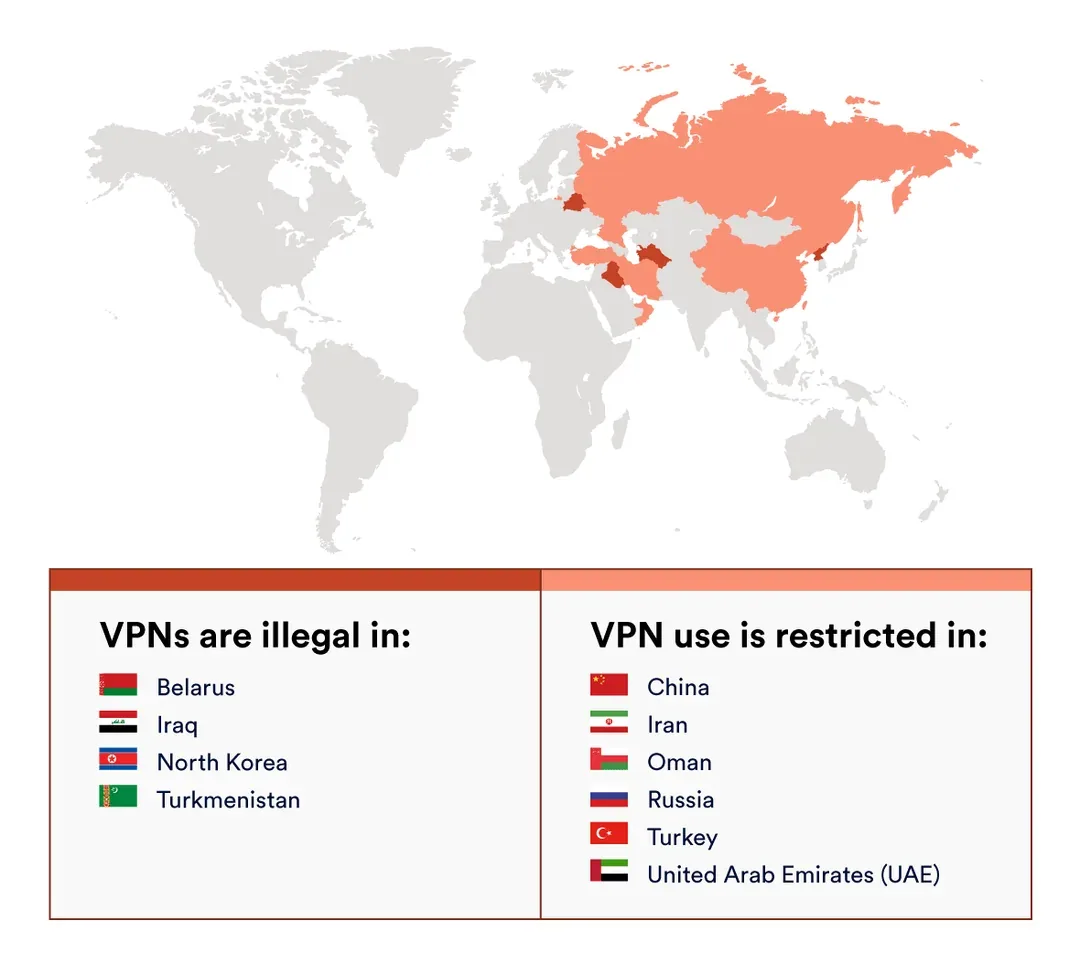
Encryption protects information in particular situations, such as when a device is lost or data crosses a network. HTTPS is already central to secure web connections. A VPN changes the route and trust relationship for some internet traffic; it does not make a user anonymous or stop every type of scam.
Decide what you want to protect before paying for a VPN. Review the provider's privacy claims and independent evidence rather than assuming a 'no logs' slogan settles every question.
Where should you begin?
If your devices and accounts are generally in good shape, a sensible first weekend of security work can be fairly modest:
- Install pending operating-system and browser updates.
- Secure your main email with a unique password and stronger sign-in.
- Review banking and payment-app alerts and recovery details.
- Remove unneeded apps and browser extensions.
- Back up irreplaceable files and test restoring one.
- Write down verified channels for reporting fraud or account compromise.
Choose tools for a reason
Large businesses have different requirements from students, families and freelancers. A team that handles customer information may need device-management controls, access reviews and reliable incident procedures; a personal laptop may be safer after the basics are done consistently. There is no benefit in purchasing every tool on a comparison chart.
For accessible public advice, CISA's Secure Our World resources are a useful additional reference. Keep checking the relevant official Indian reporting and regulatory services when the question concerns payments or local requirements.
The goal isn't perfect safety; no tool can promise that. It's to make common mistakes harder, spot trouble earlier and make recovery less painful when something does go wrong.
Have a correction or a source update? Contact the CSNR team.